
Want AI to organize files, merge spreadsheets or draft a weekly update, but keep getting stuck at installation commands? This guide starts with the download and takes you through your first office task in Clootee.
You do not have to install Claude Code, Codex or Node.js yourself, or learn terminal commands first. Clootee handles the runtime and engine installation through a graphical interface. The engine still runs behind the scenes; you simply do not have to set it up manually.
This walkthrough follows Windows and the publicly downloadable 3.1.22 release, checked on November 2, 2026. Website and console images show public pages. Local screenshots use the actual release interface with teaching fixtures. Installation progress and the sample report illustrate the workflow; they are not a timed installation recording or a live AI generation. Screenshots are in Chinese; click them to enlarge.
Quick route: download and extract → launch → email sign-in → working folder → first task. Read the office scenarios later as needed.
Watch the walkthrough
The companion video has Mandarin narration and Chinese subtitles, chapter cards and light operation sounds. Pause at each step and follow along. English instructions and ready-to-use prompts appear below.
Download MP4 · Download Chinese subtitles · Official download page
Video chapters (open MP4 at this time)
- 00:00 · Introduction
- 00:26 · Download
- 00:49 · Extract and launch
- 01:17 · Welcome screen
- 01:42 · Email sign-in
- 02:12 · Automatic installation
- 02:39 · Working directory
- 03:04 · New project
- 03:33 · Scenario templates
- 04:00 · First task
- 04:28 · Review and revise
- 04:58 · Built-in course
- 05:27 · Organize files
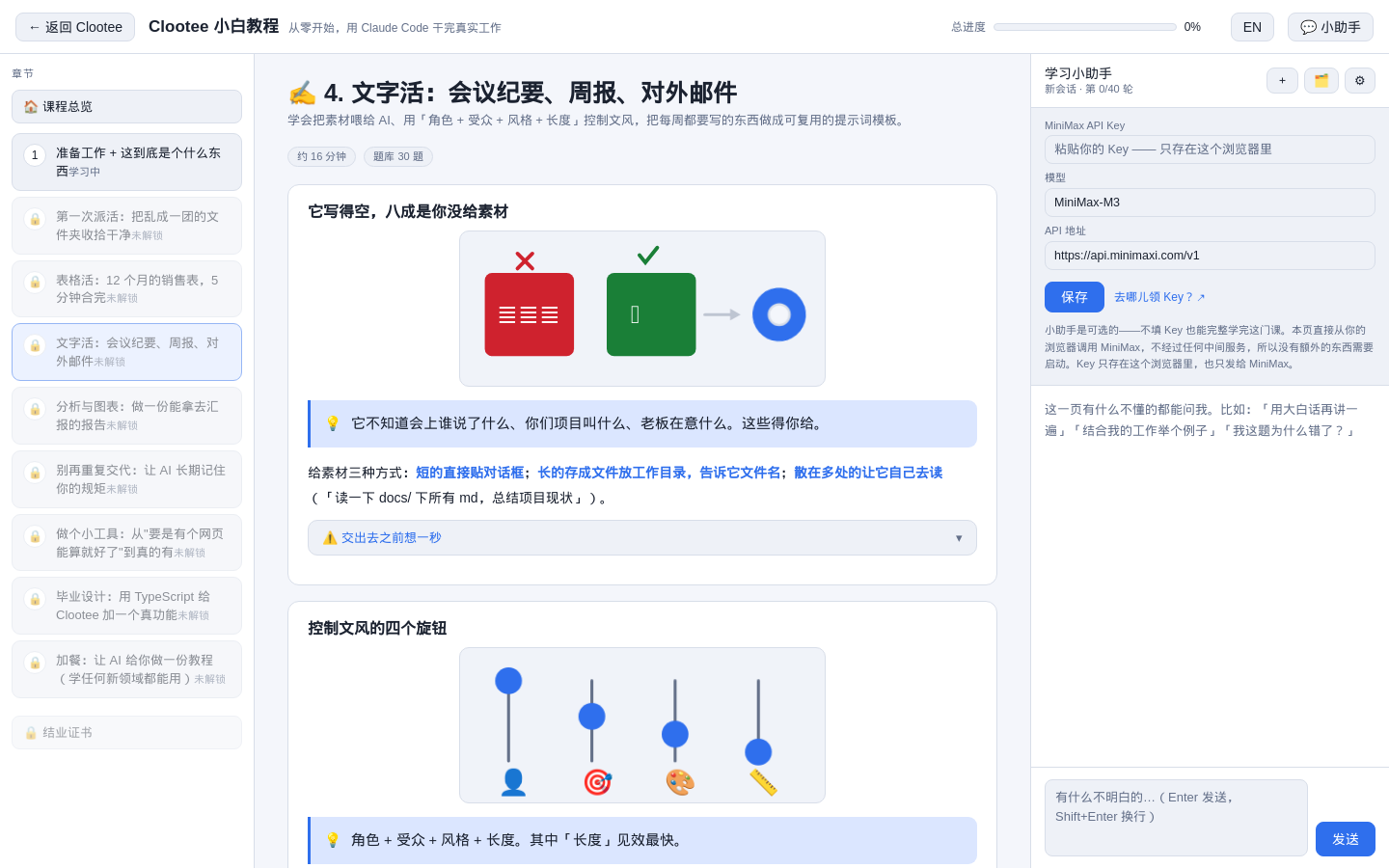
- 05:54 · Merge spreadsheets
- 06:26 · Writing tasks
- 06:51 · Analysis reports
What to prepare
- A Windows computer, a modern browser and internet access.
- An email address that can receive a verification code.
- A few lines of real work notes or copies of files to practice with.
The default setup uses a Clootee account. You do not need a separate Claude or Codex account or an API key to follow it. Available credit, models and ongoing charges are determined by the console. Automatic installation does not mean unlimited free use or offline operation.
1. Download, extract and double-click
- Open the official download page and download the ZIP. Use the current version offered there.
- Right-click the downloaded archive and choose Extract All. Choose a simple location such as
D:\Clootee. - Open the extracted folder and double-click
Windows_Start.bat. Do not launch it from inside the ZIP. - Wait for the runtime to be prepared and the browser to open. The first download depends on your connection; follow the displayed progress.
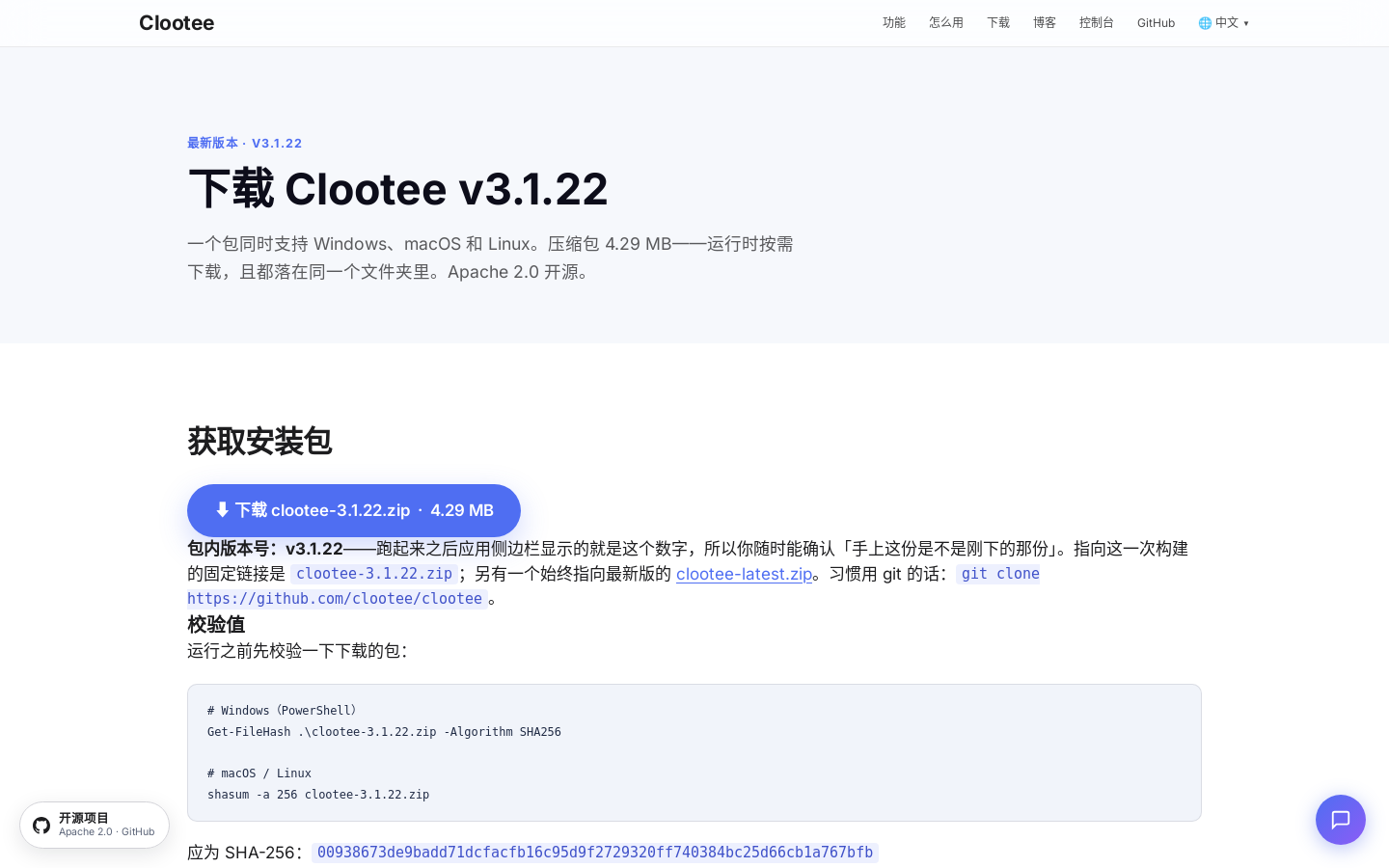
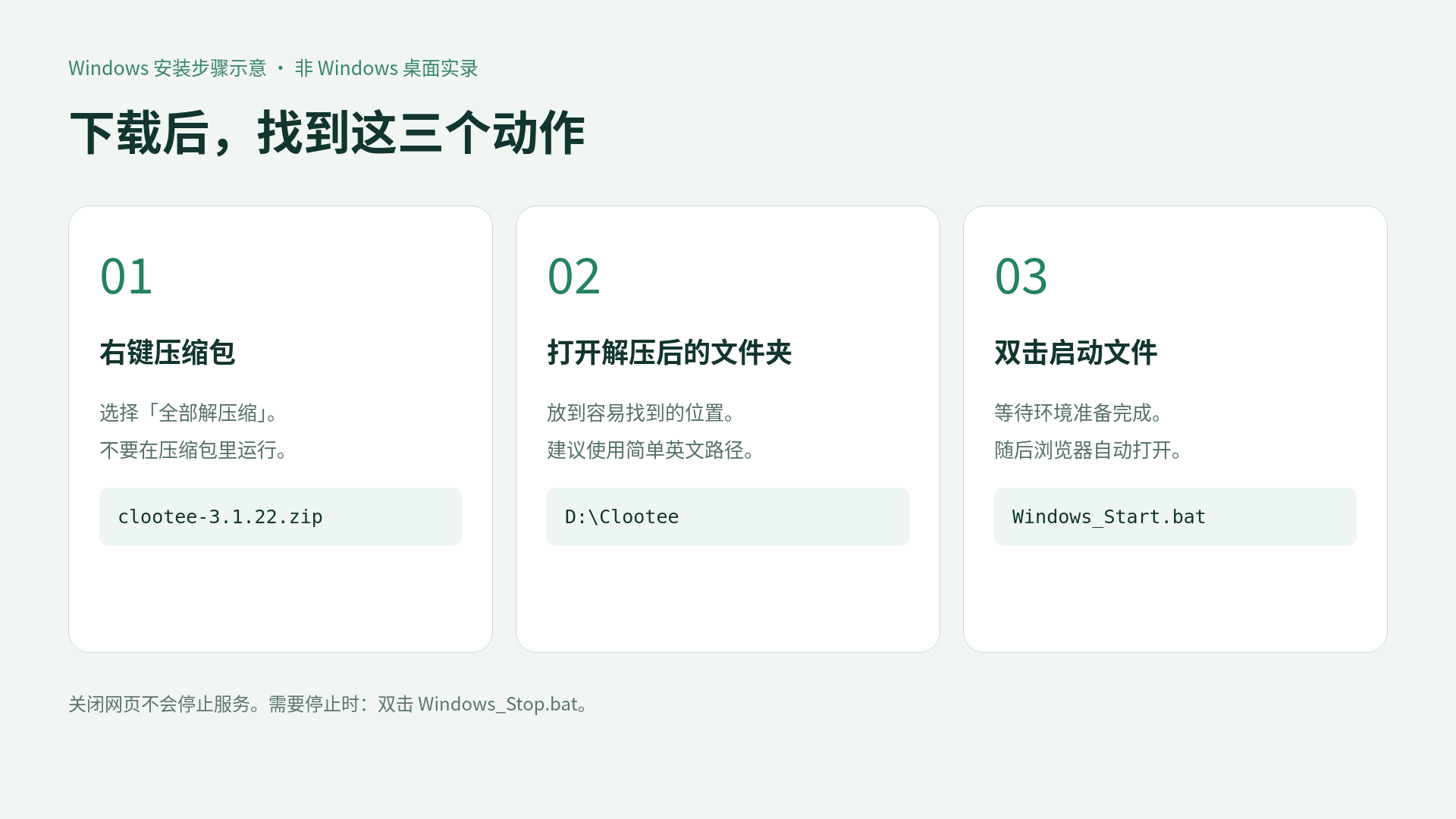
Checkpoint: the browser shows “Welcome to Clootee.” Once the launch window says the service is running in the background, follow its instructions about closing that window.
What about macOS and Linux?
The same archive includes Mac_Start.command and Linux_Start.sh. macOS may require additional security or execution-permission steps; Linux normally involves running a script. Follow the download page and bundled instructions. The no-terminal, double-click route demonstrated here is for Windows.
2. Sign in with email and let setup continue
- Choose your preferred language on the welcome screen.
- Click Sign in with email & claim credit. Keep the local setup page open.
- On the Clootee console page, enter your email, request a verification code, check your inbox and finish signing in. First-time email verification follows the account-creation flow shown there.
- If asked to authorize this computer, check the request and approve it. Return to the local page.
- Clootee continues installing the engine and opens the workspace. You do not need to type a separate Claude Code installation command.
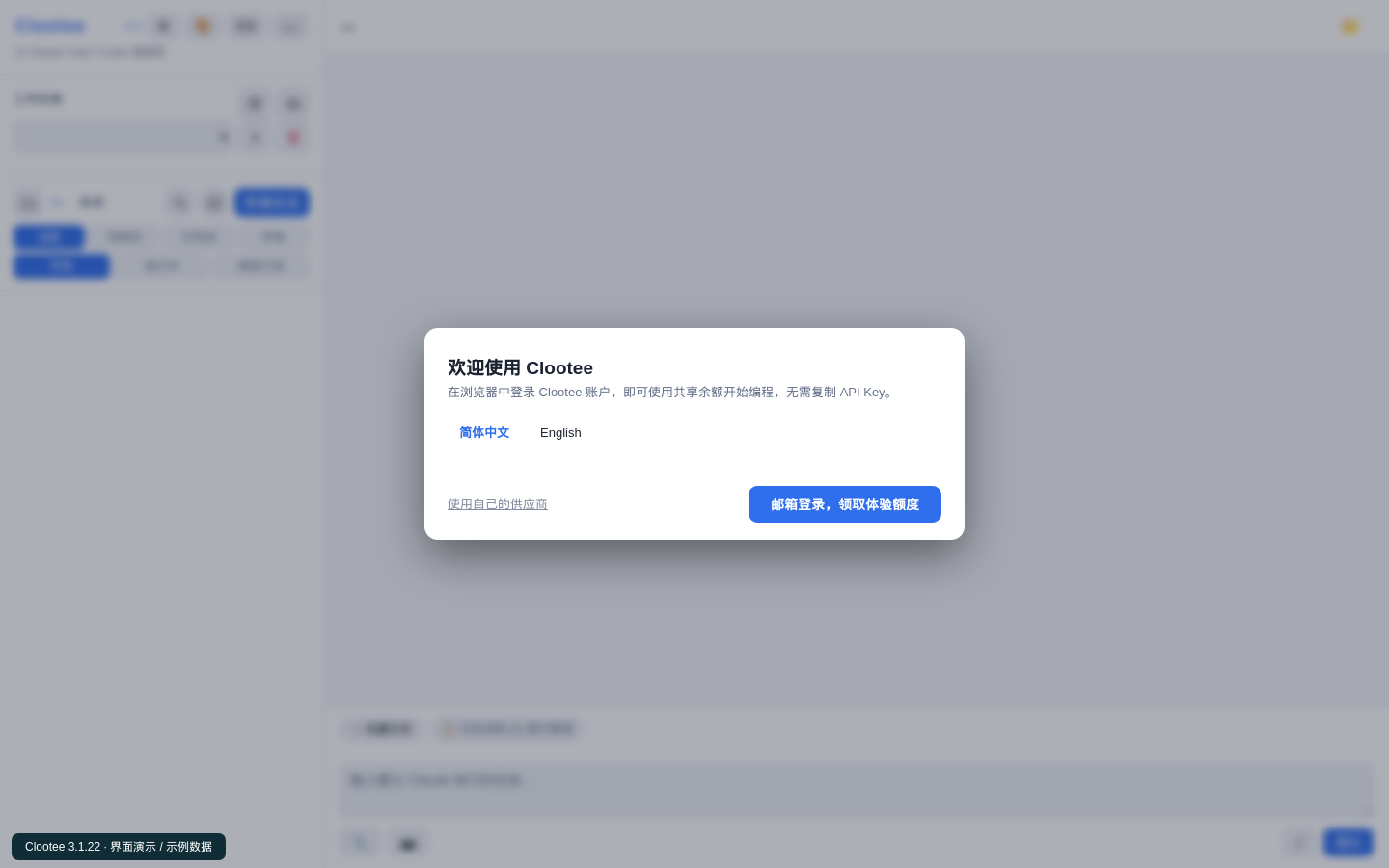

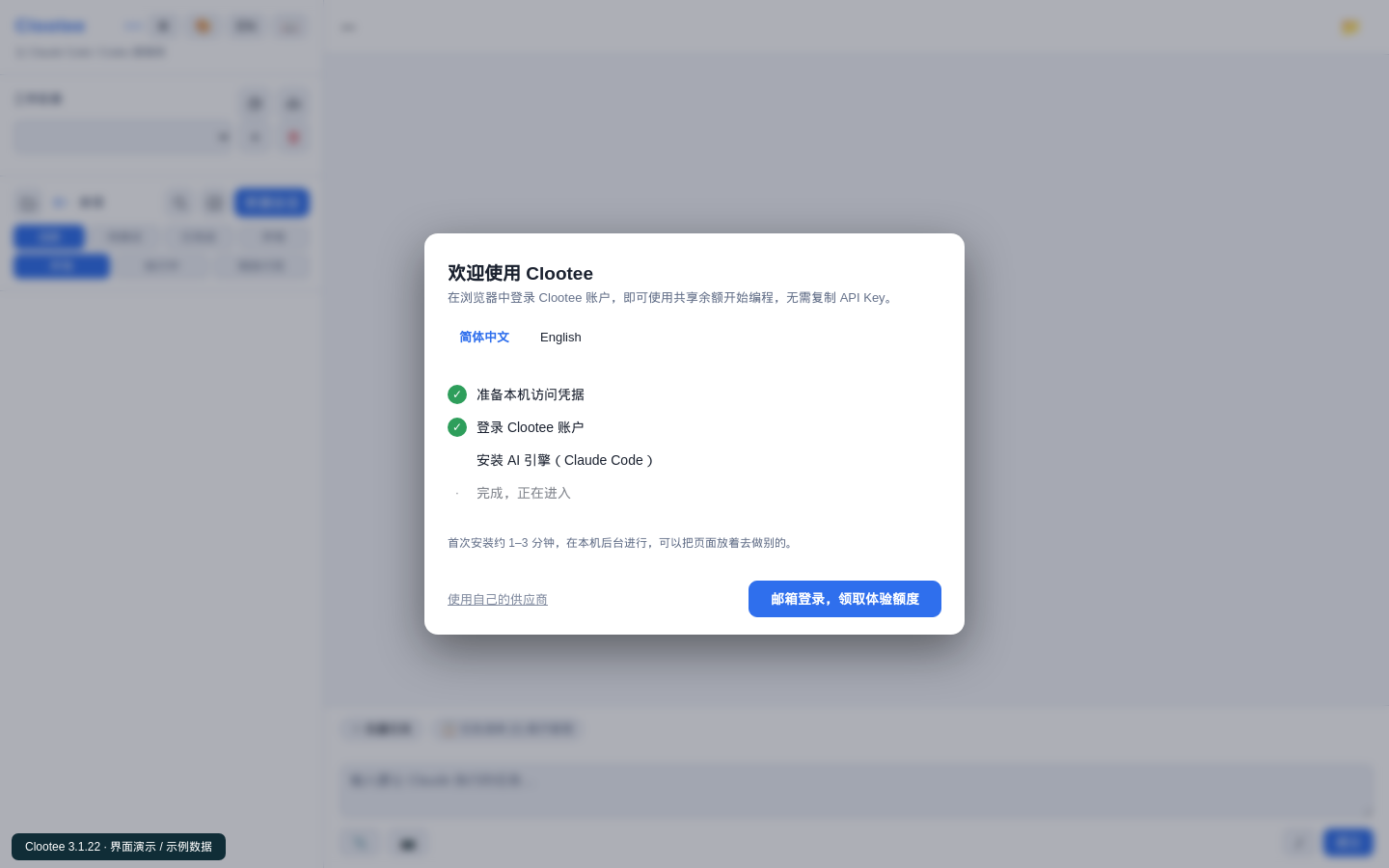
Checkpoint: setup closes and you see the workspace, directory controls and message box. If an older version asks you to set a local access password, follow that prompt; it serves a different purpose from your email code.
3. Give the AI a working folder
The working directory is the dedicated folder for this task. It tells the AI where your material lives and where to save results. Start with copies in a practice project.
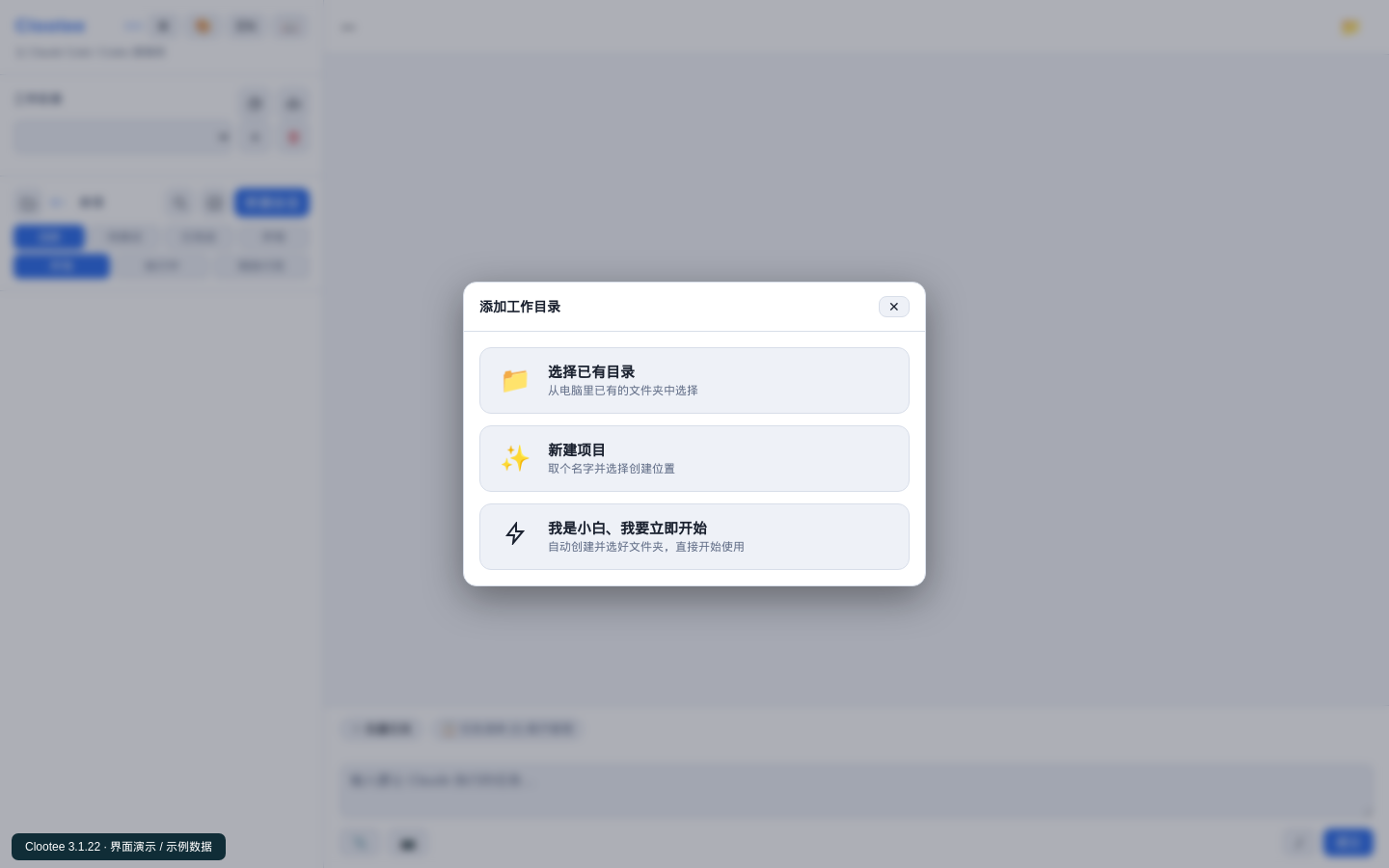
Click the plus beside Working directory. You can choose:
- I’m new — start right away: automatically prepares and selects a folder.
- Create a new project: choose a name and location, then a template. This is the recommended route for the office exercise below.
- Use an existing directory: select a folder you already have. Projects with existing instruction files may skip template selection.
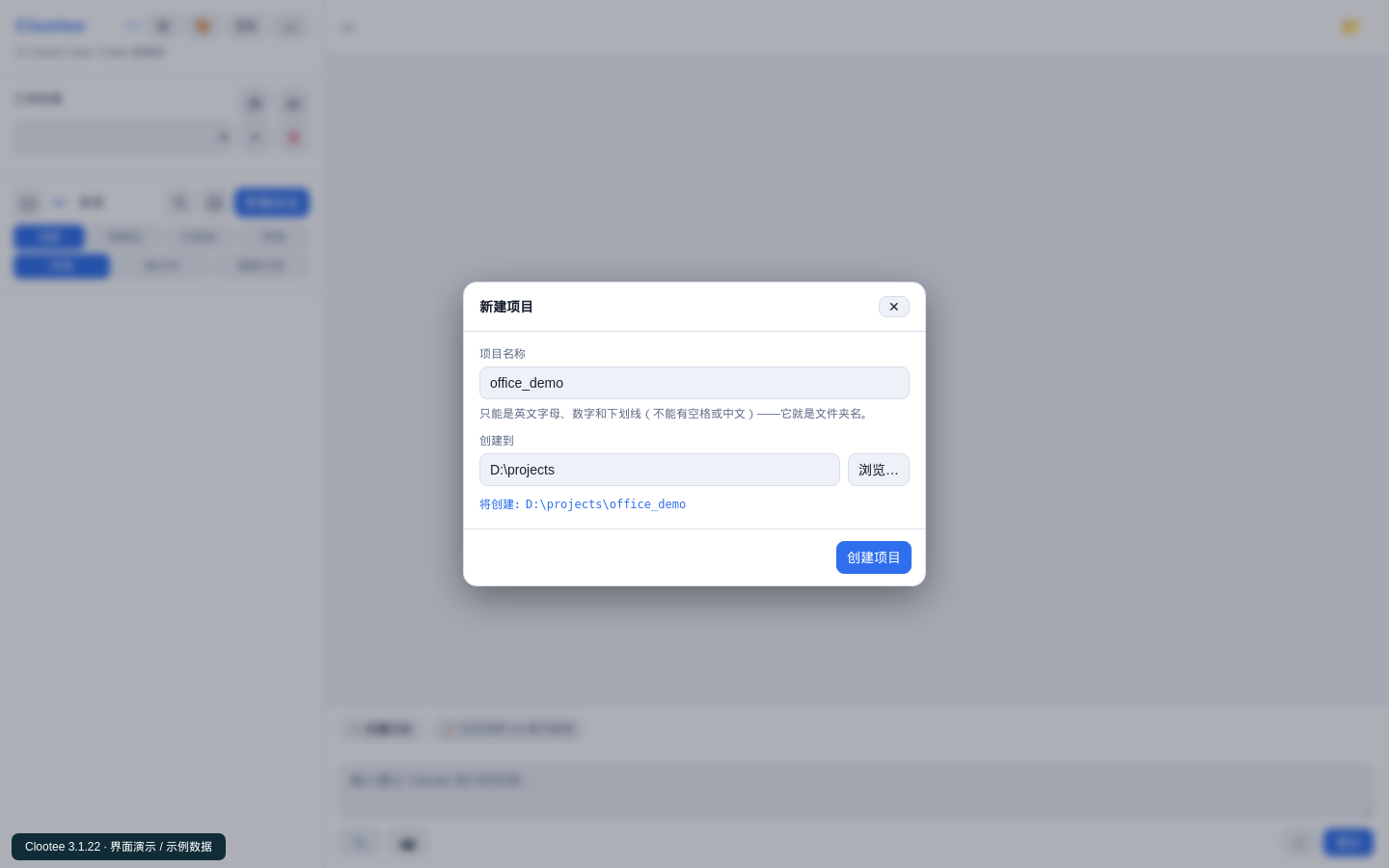
For a new project, enter office_demo, browse to a location you can find again, and create it. Names use English letters, digits or underscores.
Checkpoint: the directory selector or top bar displays your project path. Remember it when looking for saved output.
4. Pick one of six scenario templates
For documents, spreadsheets and reports, choose Daily Office. Templates put conventions about folders, names, memory or development into the project. They are starting instructions, not ready-made finished products.
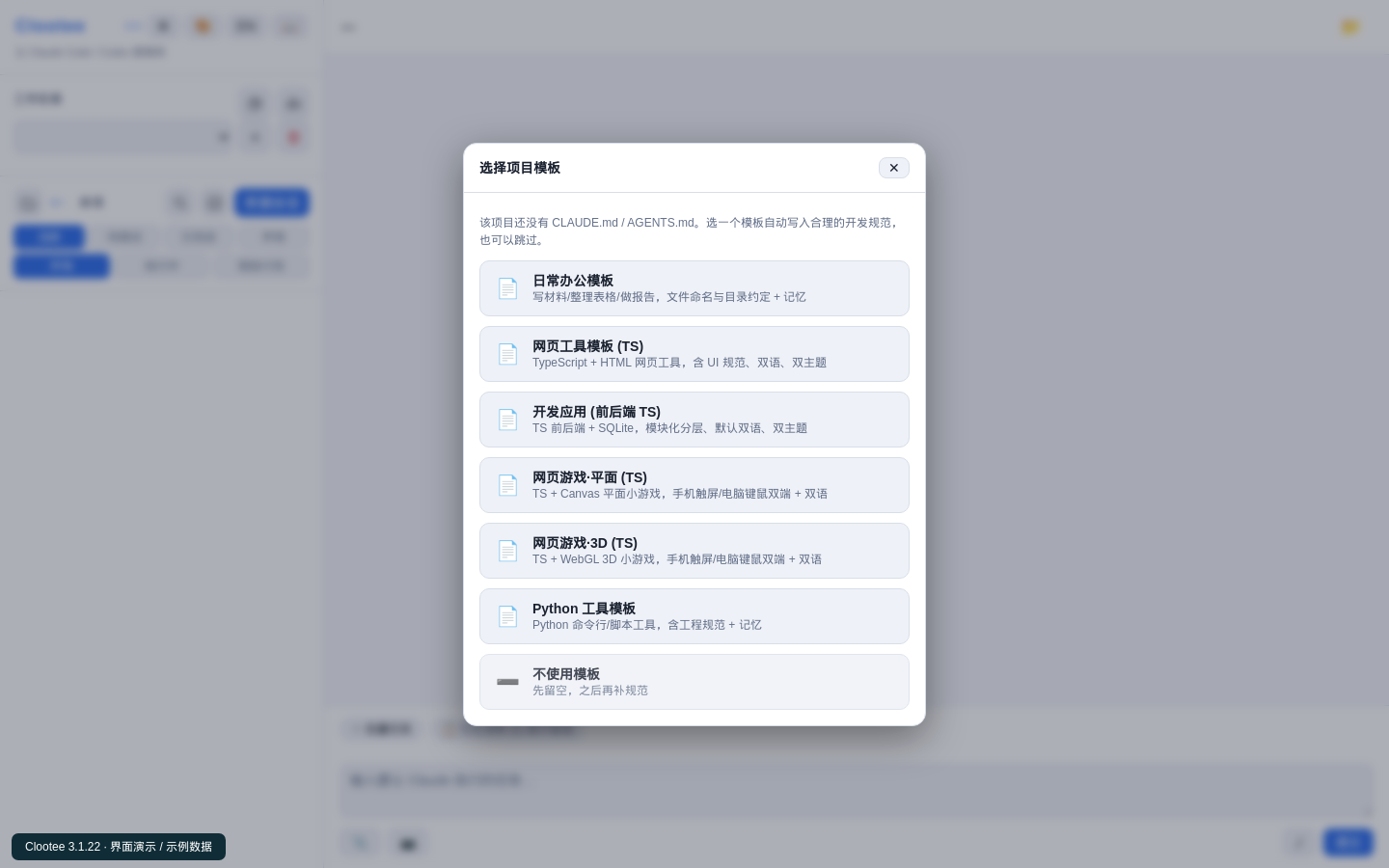
- Daily Office: documents, spreadsheets and reports.
- Web Tool: calculators, simple registration pages and browser tools.
- Full-stack App: applications with data, backend and business workflows.
- 2D Web Game: Canvas games.
- 3D Web Game: WebGL games.
- Python Tool: scripts and batch-processing tools.
Project templates and task prompts are different: the first establishes conventions, while the second describes the job you want done. If a particular task needs additional software, ask the AI to explain that requirement first.
5. Create a session and give the first task
Select the directory and click New session. Treat a session as a conversation about one job. Your first prompt should describe the goal, source material, output and boundaries.
Turn the real notes below into a weekly update.
Use three sections: completed work, problems, and next week’s plan.
Do not invent missing facts. Mark uncertainty as “to confirm”.
Show a preview in this conversation first.
After I approve it, save it as output/weekly-update.md.

Notes:
Completed 3 customer follow-ups; updated the product introduction;
a customer asked about invoicing, pending confirmation from finance.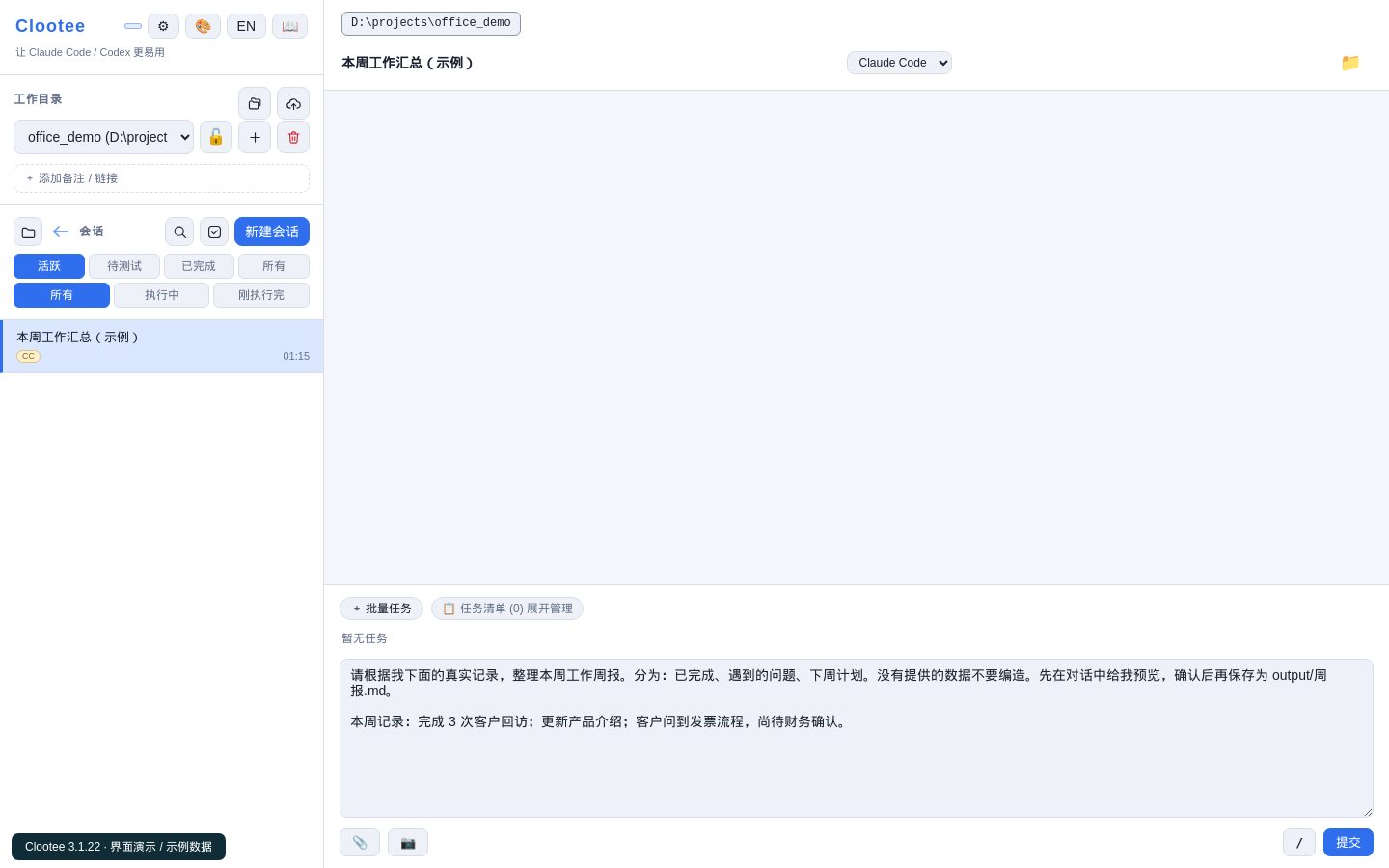
Review the answer and ask for a specific change in plain language:
Change next week’s plan to: ask finance about invoicing on Monday,
then reply to the customer after confirmation.
Show the revised preview before saving.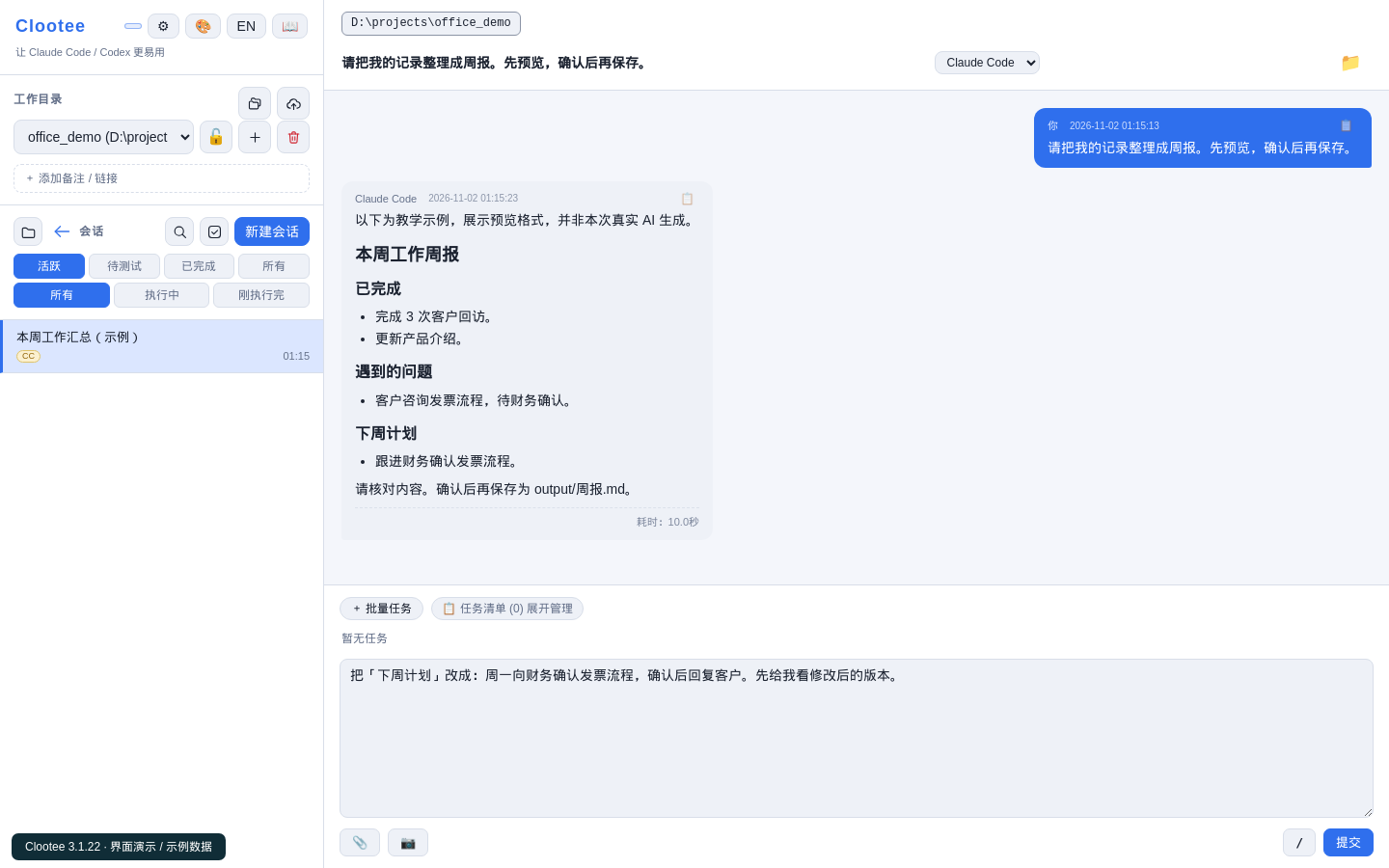
When satisfied, ask the AI to save it and tell you the location. Open the file using the workspace file manager or your project folder and check its contents. A message saying “done” is not sufficient evidence that the file is correct.
Checkpoint: you have a reviewed result that you can reopen.
Five office prompts to reuse
For file tasks, create a folder named input inside your project and put copies of the material there. The prompts use output for results; ask the AI to create it when saving. These are folder names, not additional software.
Organize files: plan first, move later
List files in the input folder of this project.
Suggest categories: contracts, invoices, product material and other.
Show a table mapping each original name to its proposed location.
Do not move, delete or overwrite anything until I approve the plan.
Check for missing files, unsuitable categories and name collisions before approving changes.

Merge spreadsheets: define the rules
Inspect the sales tables in input. List differences in column names,
formats and dates before merging.
After I confirm the fields, save output/sales-summary.csv.
Do not guess deduplication rules; list anything needing confirmation.
Produce an exceptions list, source and result row counts, and total sales.
Keep source files unchanged.
Sample a few rows, then check counts, duplicate handling and totals. Ask the AI to check for any required spreadsheet or scripting dependencies.
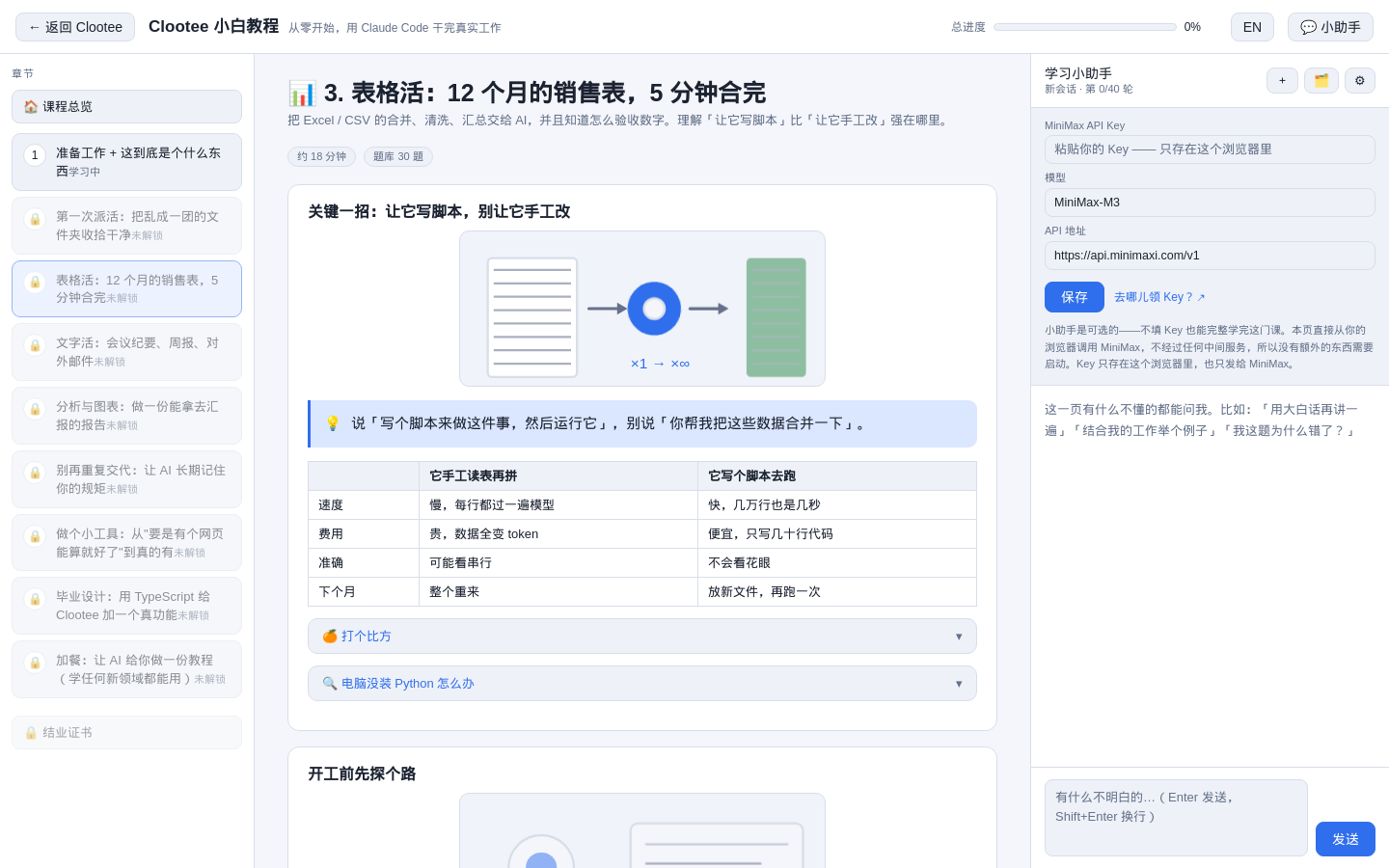
Meeting minutes: mark missing details
Turn my meeting notes into minutes with decisions, actions,
owners, deadlines and open questions.
If an owner or deadline is missing, write “to confirm”.
Preview the result. Do not send it to anyone.

Meeting notes: paste your real notes here.
Weekly updates and customer emails: supply real facts
Draft a short customer progress email from the facts below.
Use a polite, direct tone in fewer than 150 words.
Include completed work, current blockers and next actions.
Do not promise delivery dates I have not confirmed.
Create a draft only; I will review and send it myself.

Facts: paste your real facts here.
Check names, dates, numbers, commitments and tone before sending anything externally.
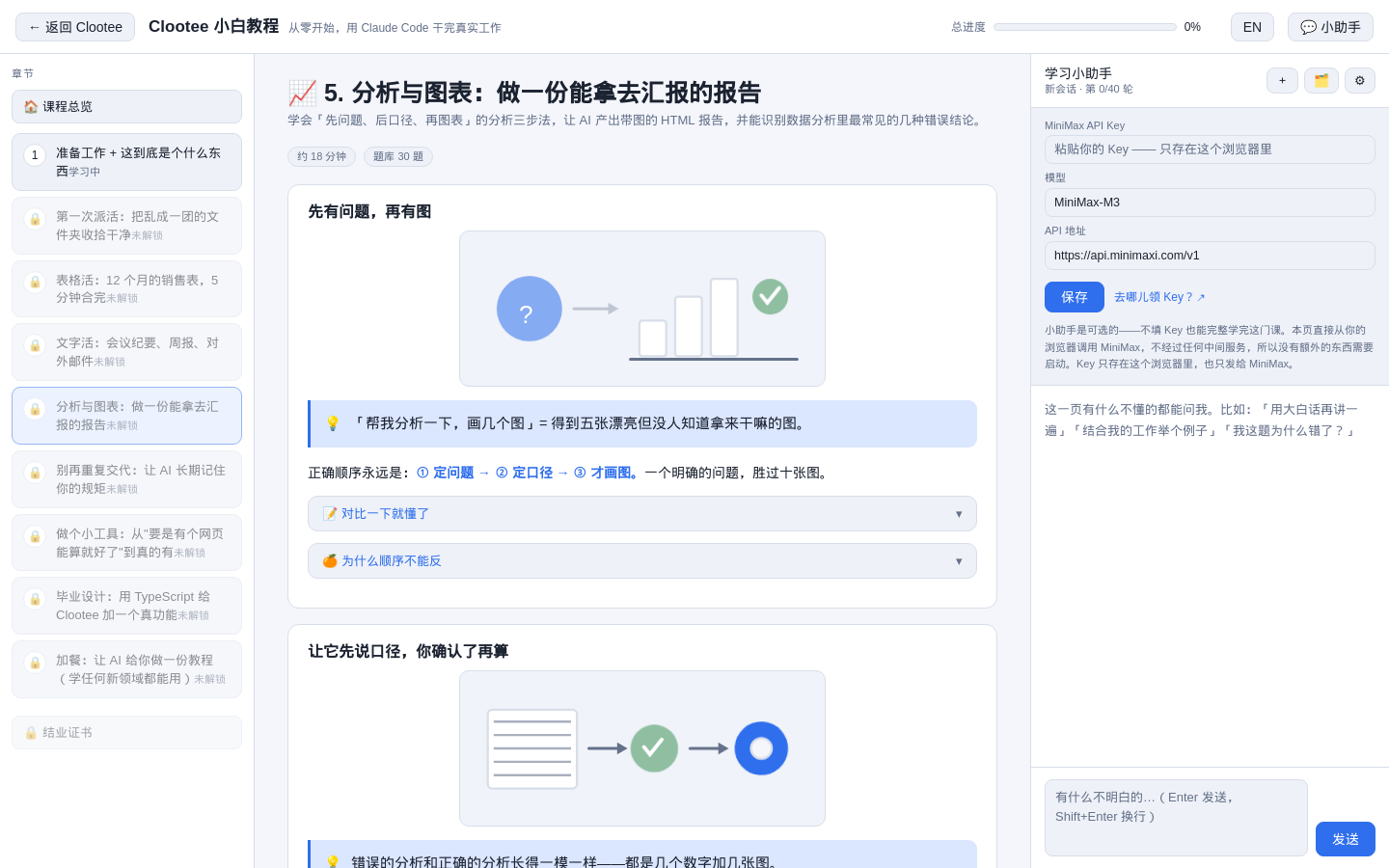
Analysis reports: start with the question
Inspect the data in input and explain which products account for
the change in sales this month.
First list the date range, currency unit, refund and missing-value rules.
Wait for my confirmation before calculating.
Then save an HTML report with charts in output.
Every conclusion must correspond to source data or a calculation.
Say when evidence is insufficient. Never invent chart data.
Check consistent definitions, traceable charts and conclusions that stay within the evidence.
Continue with the built-in course
Open the guide menu (book icon) → beginner course. It opens in another tab and covers setup, files, tables, writing, charts, persistent instructions, web tools, a development exercise and learning a new field.
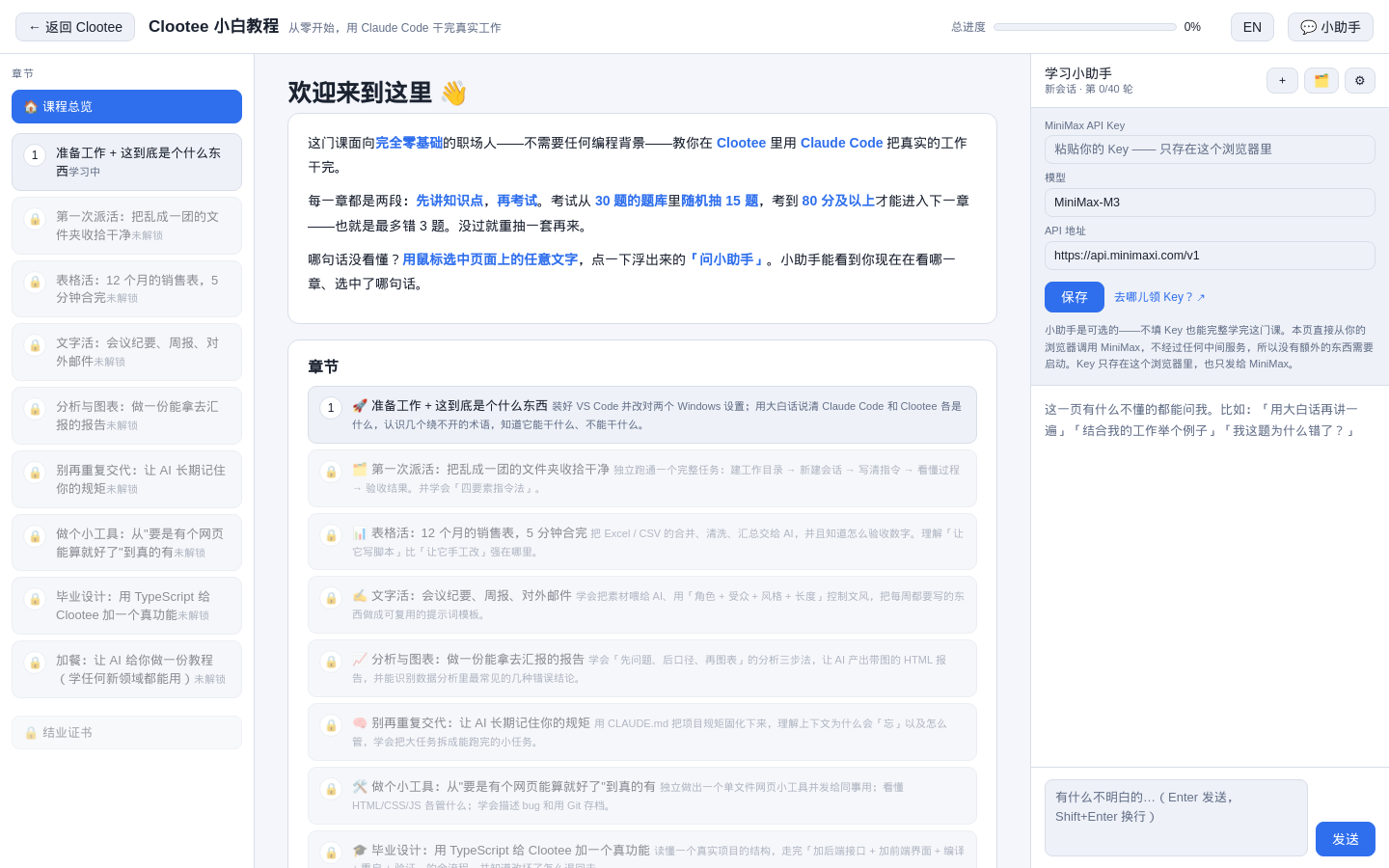
Follow the lessons, practice exercises and quizzes. The learning assistant on the right is optional and requires the separate API key it asks for. You can read the course without it. This is separate from the email-based setup of the main workspace.
Common first-run questions
No browser window appeared?
Confirm that you fully extracted the ZIP and ran Start rather than Stop. Read the launch window’s status. The first setup requires internet access. If the service is running but the browser did not open, use the local address printed by the launcher.
Still on the welcome screen after signing in?
Finish the email verification and any computer-authorization step. Keep the local page open and use its status check or retry action. Authorizing a different computer does not authorize this one.
Connection, installation or balance error?
Follow the reason shown in the page. Check connectivity before retrying network errors, inspect the installation stage for setup errors, and check the console for account credit. Use the advanced provider route when you actually intend to connect an existing provider account.
The AI cannot find my files?
Check the selected working directory and file names. Ask it to list files first. Keeping copies of the task material in this project’s input folder makes the scope easier to explain.
Does closing the browser stop Clootee?
No. To stop the local service, double-click Windows_Stop.bat in the extracted folder. Use Start again next time, and keep your project material and results.
Finish one small job today
Download and extract → launch → email sign-in → working folder → office template → new session → first task → review and reopen the saved result. A weekly update based on five lines of real notes is a good first milestone.
Download Clootee and try your first task
Sources: the official download page and public 3.1.22 archive, its setup flow, templates and beginner course, and the public console sign-in page. Edited November 2, 2026. Interfaces may change in later releases.